 Abonatus
At a desk with a computer, scanning with the receptionist's phone means picking it up, opening the scanner and aiming one phone at another. That's fine for ten people an evening. At six o'clock, when eight people arrive at once, it gets slow.
A handheld scanner plugged into the computer does the same with one beep. We tried one this week: an ordinary handheld QR scanner, plugged into a laptop, read the code in the Abonatus app off a phone screen, and static codes on paper and on a phone, every time, with nothing to install.
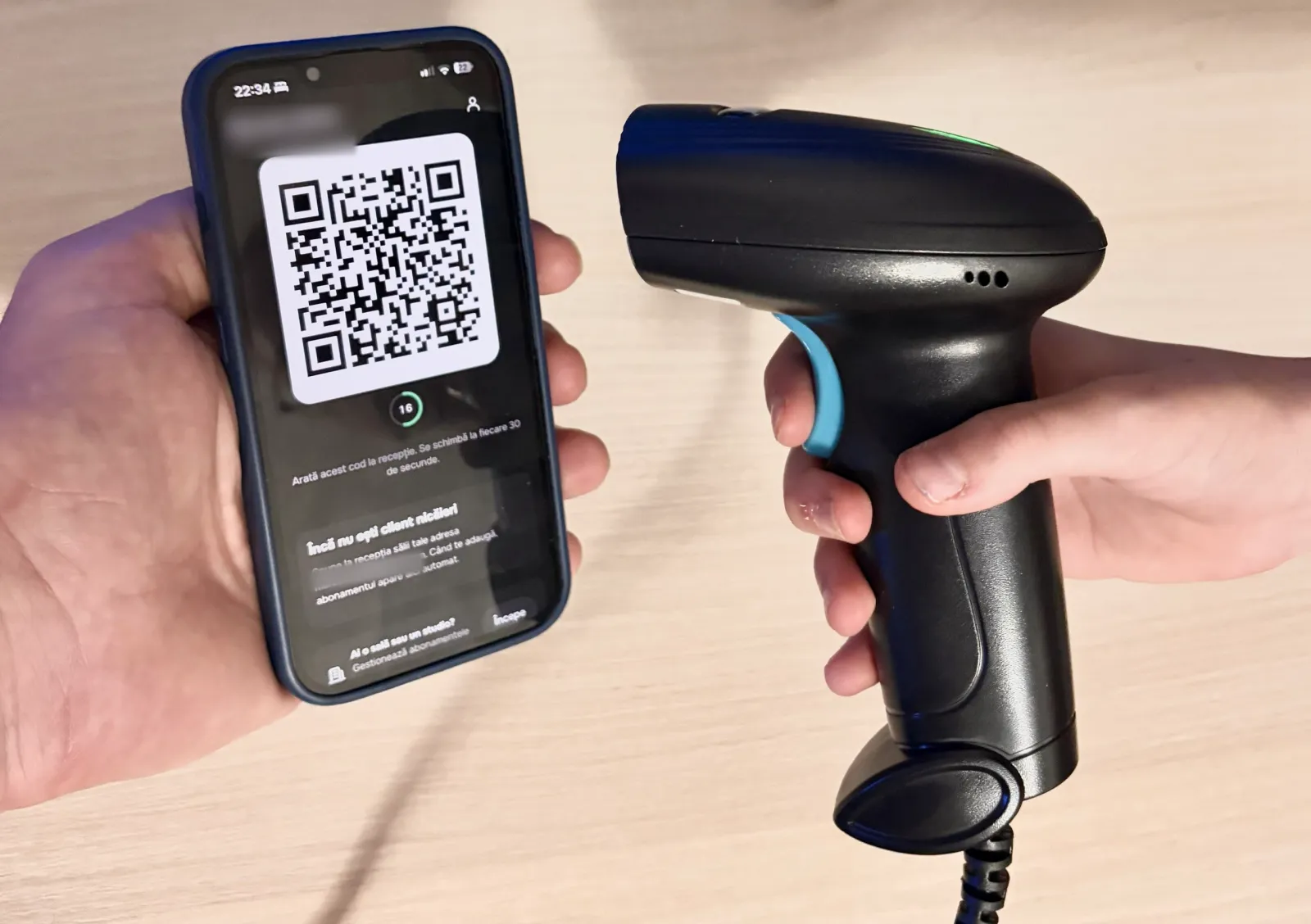
What it looks like at the door
The member holds out their phone. The receptionist points the scanner at it, it beeps, and the computer screen fills with the verdict: green with the member's name and photo, or red with the reason, "pass expired" or "frozen until Friday". The member never hands their phone over, and the receptionist never takes their eyes off the person in front of them.
Then the cursor is back in the search field, ready for the next code.
What to buy
You don't need a particular brand. Look for four things in the description:
- 2D, or QR. A plain barcode scanner (1D, often a red laser line) reads only the striped barcodes on shop goods, not QR codes.
- Reads from screens. Most 2D scanners do; the description usually says "reads from phone screens" or "mobile payments".
- USB, works as a keyboard. Almost all of them do this out of the box (it may be called "USB HID" or "keyboard emulation"). That is what lets it work without a driver or an app.
- A stand, if your evenings are busy. Many scanners have an automatic mode on a stand: the member holds their phone under it, it beeps, and the receptionist's hands stay free.
A corded one is the simplest. A wireless one with a small USB receiver works the same way, as long as its battery is charged.
Setting it up
- Plug the scanner into the computer. On a Mac a window may ask you to identify the new keyboard; close it.
- Open app.abonatus.com in the browser and sign in.
- Switch to the desktop version. The app offers it on a computer ("On a computer? Switch to the desktop version."), or it is under More, Desktop version. It is remembered on that computer.
- Scan a member's code.
There is no field to click first. In the desktop version whatever the scanner types goes to the search field at the top, Search a client or scan…, wherever the cursor happened to be: on the clients list, on a member's card, on the calendar. A code is never searched for as a name: it goes straight to the door and its verdict covers the screen.
Several people at once
Scan them one after another, without waiting. The codes queue up and none is lost: each green stays on screen for at least a second before the next verdict replaces it.
A red is different. It stays until the desk has looked at it (Enter, Esc or a click), and the codes scanned behind it wait, with the red showing how many. So nobody walks in on somebody else's refusal, and the person with an expired pass doesn't slip past in a group.
Someone who isn't a member of your venue yet, but has Abonatus from another one, comes up as "not a member here", with two buttons: add them as a member, or sell a single entry and let them in.
The phone, or a code on paper
The code in the app changes every 30 seconds, so the scanner reads whatever is on the screen at that moment, and a screenshot sent to a friend stops working (How a QR code that changes every 30 seconds stops pass sharing).
For clients who won't install an app, the owner can allow static QR codes in Venue settings. Each client then gets a code that never changes, as a picture on their phone or printed on paper, and a scanner reads paper even more easily than a screen. A picture can be copied, so the screen says it is a static code and asks the desk to check the photo; a second entry on the same day shows when that code first came in.
If it doesn't scan
- It beeps, but nothing happens on screen. The scanner isn't pressing Enter after the code. Its manual has a code to scan that sets the "suffix" to Enter (CR).
- Strange letters appear in the search field. The computer's keyboard is on another layout, Russian for example. The scanner types like a keyboard, so on a Russian layout the code comes out in Cyrillic. Switch the layout to English or Romanian and scan again. Caps Lock, on the other hand, doesn't matter.
- It doesn't read the phone at all. Turn up the phone's brightness, and hold it a hand's width from the scanner rather than right against it.
- No desktop version on a small laptop. It needs a wide window: maximise the browser.
What it doesn't do
The scanner lets people in on the screen: the receptionist sees green and says "come in". It doesn't open a door or a turnstile; Abonatus doesn't do that yet.
And at a desk without a computer, nothing changes: the receptionist's phone scans as before. The scanner is worth it where there is a computer at the desk and the busy hours are really busy.